

Visual Studio Code – Connecting from Windows to Linux
Creating SSH connection between Windows and Linux machines
Visual Studio Code uses SSH key-pair to connect to linux box.
So we’ll create key-pair on Windows 10 and copy Windows 10 public key to /~/.ssh/authorized_key file
Open Command prompt on Windows 10 and create keys.
ssh-keygen
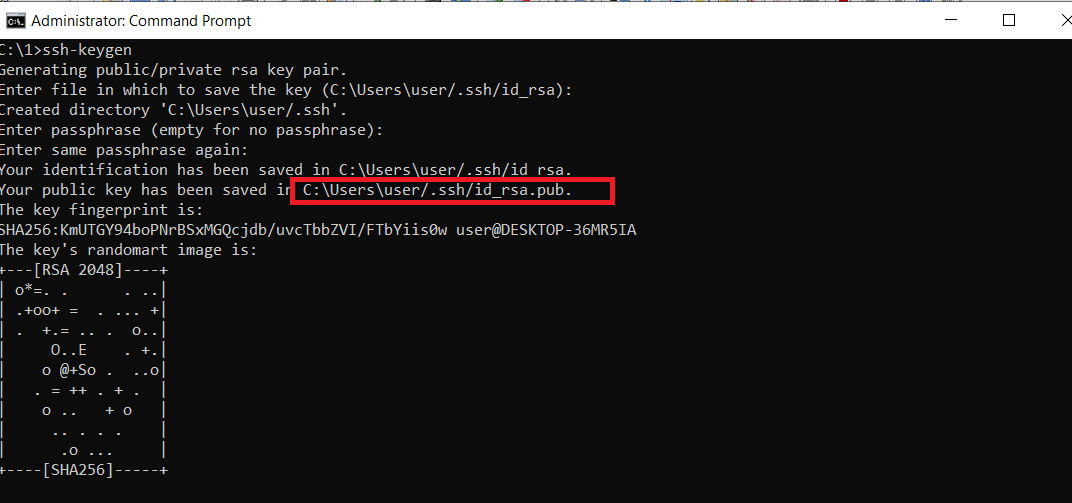
On CentOS 7 create ~/.ssh/authorized_keys file, set appropriate permissions and copy content of public key Windows 10 file to Linux machine
~/.ssh/authorized_keys</code

mkdir /root/.ssh

chmod -R 700 /root/.ssh/

vi /root/.ssh/authorized_keys

# copy content of your public key file to authorized_keys file

chmod 600 /root/.ssh/authorized_keys

systemctl restart sshdTest ssh connection from Windows 10 to Linux
Open CMD and type
ssh -i c:\Users\user\.ssh\id_rsa root@192.168.0.15
Install Visual Studio Code on Windows.
Once installed, click on “Cog” button – extensions.
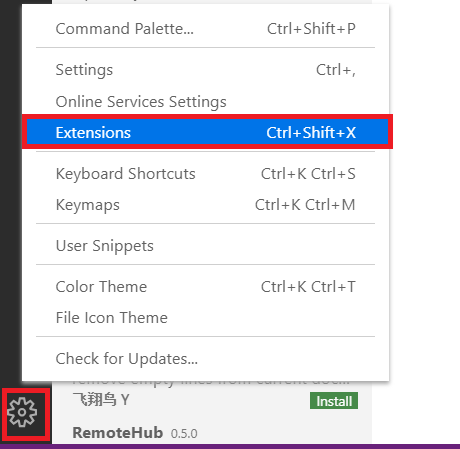
Type Remote – SSH to install this extension – click on Install
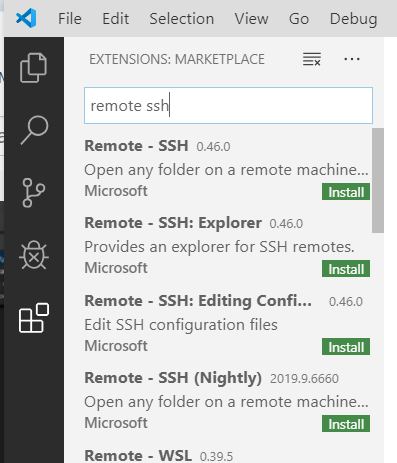
Now, click again on “Cog” – Command Pallete
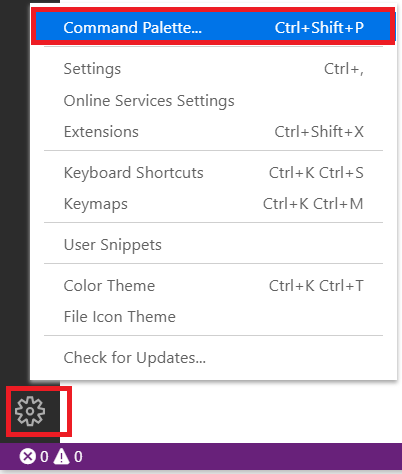
Type Remote – SSH: Open Configuration File
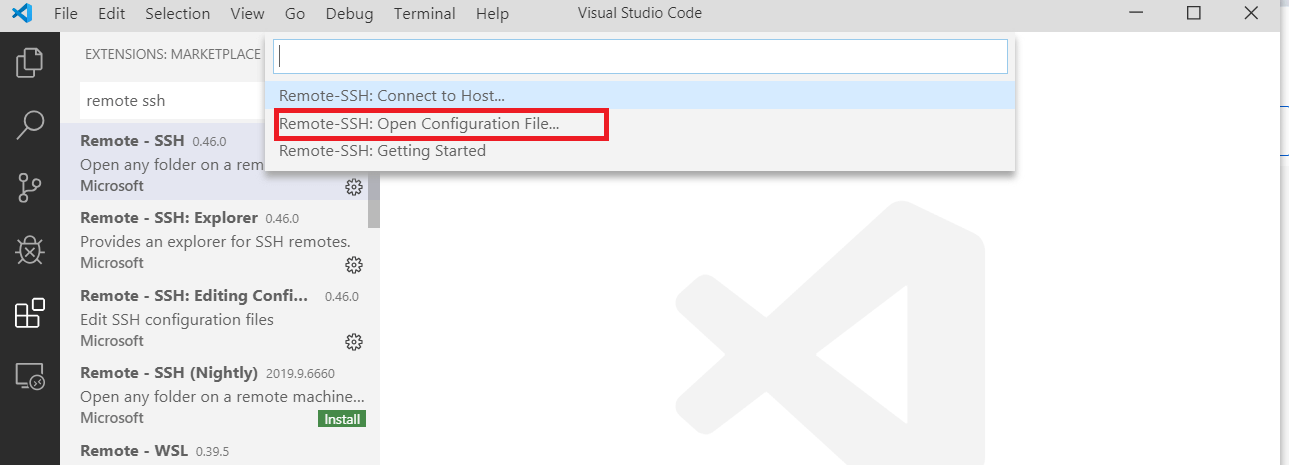
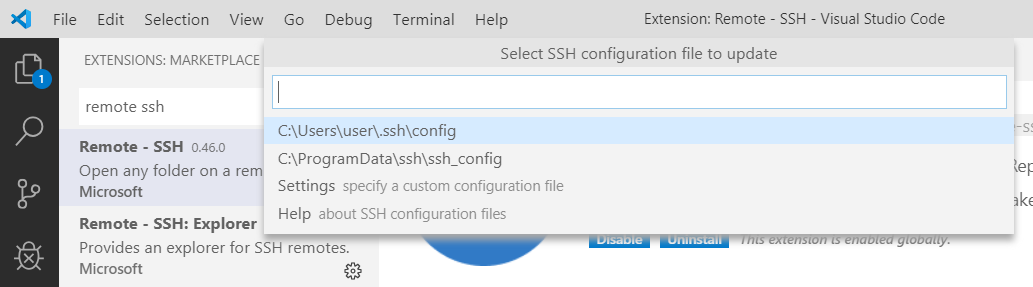
Select configuration file located in your User Profile
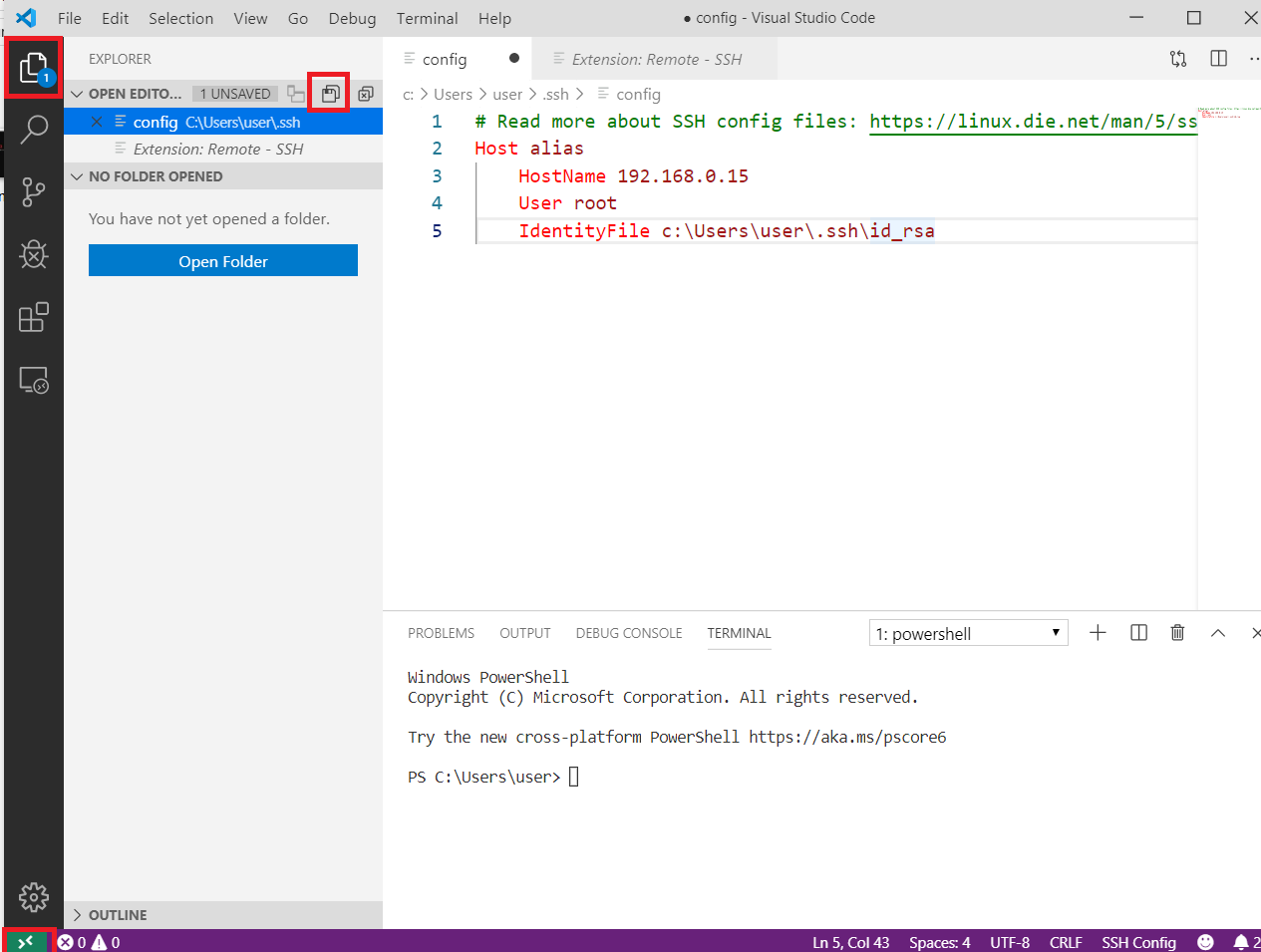
Change alias in some more descriptive, set IP address as hostname, user and path to private key, then save file.
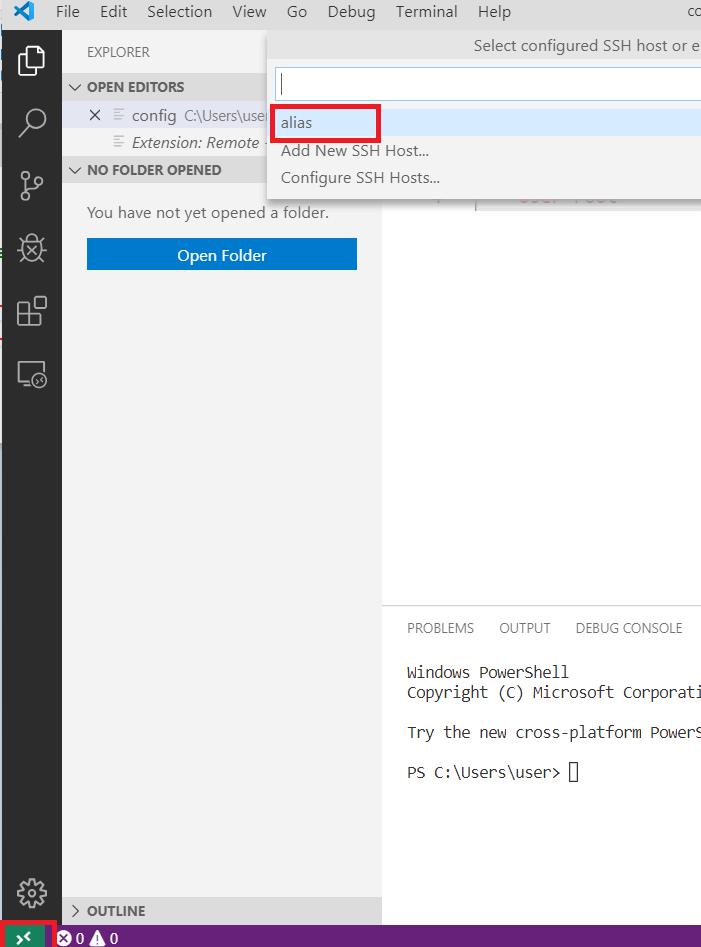
Now click green button (far bottom left) – select alias we set in configuration file.
Connection to Linux should be established (Connected to), click Open folder, select desired folder – click OK.