Monitoring Log Files with PowerShell and Zabbix
Following PowerShell script monitors various log files and sends output to JSON file, due to large number of logs, although script executes for about 16 seconds, was getting “Timed out” errors in Zabbix, that’s why output is saved in file.Each line in log file starts with datetime stamp, for example:
2025.06.27 12:35:12 Attempting to fetch Azure AD audit sign-in logs for
Script search log file section created last time log was modified: if last time script was running today, it will search today’s date, if yesterday, then yesterday’s date and so on.
# Script for monitoring varius log files and sending results
# to JSON file which is send to Zabbix


# Define the log file for THIS script's errors (for the WriteLog function)
$log = "D:\ScriptsLogs\CheckLogErrorsForZabbix.txt"

# Define the array of log file paths to scan.
$LogFiles = @(
    "D:\ScriptsLogs\1.txt",
    "D:\ScriptsLogs\2.txt",
    "D:\ScriptsLogs\3.txt",
    "D:\ScriptsLogs\4.txt"
)

$SearchStrings = @(
    "error",
    "exception",
    "[ERROR]",
    "Exception calling"
)

# Define a BASE set of ignore patterns (these apply to ALL files)
$BaseIgnorePatterns = @(
    "Could not get FGPP for"
    "Insufficient access a to perform the operation"
    "Insufficient access rights to perform the operation"
    "Cannot find an object with identity"
    # Add other truly global ignore patterns here
)

# Define a Hashtable for file-specific ignore patterns.
# Key: Full path to the log file.
# Value: Array of strings to ignore ONLY for that specific file.
$FileSpecificIgnorePatternsMap = @{
    "D:\ScriptsLogs\1.txt" = @(
        "More than one contract"
    );
    # Add more file paths and their specific literal ignore patterns here as needed
}

# Define the path where the JSON output file will be saved
$JsonOutputFilePath = "D:\ScriptsLogs\ZabbixLogErrors.json"

# Compile search patterns into a single regex object
$combinedSearchRegexPattern = ($SearchStrings | ForEach-Object { [regex]::Escape($_) }) -join '|'

# Regex to match the date part at the very beginning of a line (e.g., 2025.06.24)
# Also allows for timestamp and then a space or tab, and captures the date itself in group 1.
$dateLineRegex = '^(\d{4}\.\d{2}\.\d{2})(?:\s+\d{2}:\d{2}:\d{2})?[\s\t]*'

# Array to store results for Zabbix - Keep this OUTSIDE the loop
$zabbixResults = @()

# region --- Main Processing Loop ---

foreach ($logFilePath in $LogFiles) {
    # Initialize a temporary result object for current file's processing status
    # This object holds the actual analysis results (status, message, date)
    $currentFileAnalysisResult = [PSCustomObject]@{
        "status"           = 0 # Default: No error found
        "latest_error_message" = ""
        "latest_error_date"    = ""
    }

    if (-not (Test-Path -LiteralPath $logFilePath -PathType Leaf)) {
        $currentFileAnalysisResult.status = 0
        $currentFileAnalysisResult.latest_error_message = "Log file not found: $logFilePath"
        $currentFileAnalysisResult.latest_error_date = (Get-Date -Format 'yyyy.MM.dd')
        WriteLog "Warning: Log file not found - $logFilePath" $log # Log this specific warning
    } else {
        # --- Step 1: Initialize current file's ignore patterns with base patterns ---
        $currentFileIgnorePatterns = [System.Collections.ArrayList]::new($BaseIgnorePatterns)

        # --- Step 2: Add file-specific ignore patterns from the map ---
        if ($FileSpecificIgnorePatternsMap.ContainsKey($logFilePath)) {
            $patternsToAdd = $FileSpecificIgnorePatternsMap[$logFilePath]
            foreach ($pattern in $patternsToAdd) {
                $currentFileIgnorePatterns.Add($pattern) | Out-Null
            }
        }

        # --- Step 3: Compile the combined ignore regex pattern for the *current file* ---
        $combinedIgnoreRegexPattern = ($currentFileIgnorePatterns | ForEach-Object { [regex]::Escape($_) }) -join '|'

        $latestDateInFile = $null # Stores the most recent date found in the current log file

        # --- Pass 1: Determine the absolute latest date in the file ---
        try {
            $reader = [System.IO.File]::OpenText($logFilePath)
            while (($line = $reader.ReadLine()) -ne $null) {
                if ($line -match $dateLineRegex) {
                    $lineDate = $Matches[1]
                    if ($latestDateInFile -eq $null -or $lineDate -gt $latestDateInFile) {
                        $latestDateInFile = $lineDate
                    }
                }
            }
            $reader.Close()
        } catch {
            $currentFileAnalysisResult.status = 0
            $currentFileAnalysisResult.latest_error_message = "Script Error (Pass 1) for $logFilePath - $($_.Exception.Message)"
            $currentFileAnalysisResult.latest_error_date = (Get-Date -Format 'yyyy.MM.dd')
            WriteLog "Error (Pass 1) for $logFilePath $($_.Exception.Message)" $log # Corrected WriteLog call
        }

        # Only proceed to Pass 2 if no errors occurred in Pass 1 and dates were found
        if ($currentFileAnalysisResult.latest_error_message -eq "" -and $latestDateInFile -eq $null) {
            # No date-stamped entries found, so no errors to report for this file
            $currentFileAnalysisResult.status = 0
            $currentFileAnalysisResult.latest_error_message = "No date-stamped entries found."
            $currentFileAnalysisResult.latest_error_date = (Get-Date -Format 'yyyy.MM.dd')
        } elseif ($currentFileAnalysisResult.latest_error_message -eq "") { # If no errors in Pass 1 and date found
            # --- Pass 2: Collect all entries for the determined latest date and process ---
            try {
                $entriesForTargetDate = [System.Collections.ArrayList]::new()
                $currentEntryLines = [System.Collections.ArrayList]::new()
                $collectingForTargetDate = $false

                $reader = [System.IO.File]::OpenText($logFilePath)
                while (($line = $reader.ReadLine()) -ne $null) {
                    if ($line -match $dateLineRegex) {
                        $lineDate = $Matches[1]
                        if ($lineDate -eq $latestDateInFile) {
                            if ($currentEntryLines.Count -gt 0) {
                                $entriesForTargetDate.Add(($currentEntryLines -join "`n")) | Out-Null
                                $currentEntryLines.Clear()
                            }
                            $currentEntryLines.Add($line) | Out-Null
                            $collectingForTargetDate = $true
                        } elseif ($collectingForTargetDate -and $lineDate -lt $latestDateInFile) {
                            if ($currentEntryLines.Count -gt 0) {
                                $entriesForTargetDate.Add(($currentEntryLines -join "`n")) | Out-Null
                            }
                            $collectingForTargetDate = $false
                            break
                        } else {
                            $currentEntryLines.Clear()
                            $collectingForTargetDate = $false
                        }
                    } elseif ($collectingForTargetDate) {
                        $currentEntryLines.Add($line) | Out-Null
                    }
                }
                $reader.Close()

                if ($currentEntryLines.Count -gt 0) {
                    $entriesForTargetDate.Add(($currentEntryLines -join "`n")) | Out-Null
                }

                $latestError = $null

                # Process entries in reverse order to find the latest non-ignored error
                for ($i = $entriesForTargetDate.Count - 1; $i -ge 0; $i--) {
                    $entry = $entriesForTargetDate[$i]
                    if ($entry -match $combinedIgnoreRegexPattern) {
                        continue
                    }
                    # Check if this entry matches any search pattern
                    if ($entry -match $combinedSearchRegexPattern) {
                        $latestError = $entry
                        break
                    }
                }

                if ($latestError) {
                    $firstLineOfError = $latestError.Split("`n")[0]
                    $currentFileAnalysisResult.status = 1
                    $currentFileAnalysisResult.latest_error_message = $firstLineOfError
                    $currentFileAnalysisResult.latest_error_date = $latestDateInFile
                } else {
                    $currentFileAnalysisResult.status = 0
                    $currentFileAnalysisResult.latest_error_message = ""
                    $currentFileAnalysisResult.latest_error_date = $latestDateInFile
                }

            } catch {
                $errorMessage = $_.Exception.Message
                if ($errorMessage -isnot [string]) {
                    $errorMessage = $errorMessage.ToString()
                }
                $currentFileAnalysisResult.status = 0
                $currentFileAnalysisResult.latest_error_message = "Script Error (Pass 2) for $logFilePath - $errorMessage"
                $currentFileAnalysisResult.latest_error_date = (Get-Date -Format 'yyyy.MM.dd')
                WriteLog "Error (Pass 2) for $logFilePath $($_.Exception.Message)" $log # Corrected WriteLog call
            }
        }
    }

    # After all processing for the current logFilePath is done,
    # create the final result object with the correct Zabbix macro and collected data.
    $fileName = (Get-Item $logFilePath).Name # Extract filename here

    $finalZabbixEntry = [PSCustomObject]@{
        "{#LOGFILE_NAME}"       = $fileName
        "original_path"          = $logFilePath # Optional: useful for troubleshooting in Zabbix GUI
        "status"                 = $currentFileAnalysisResult.status
        "latest_error_message"   = $currentFileAnalysisResult.latest_error_message
        "latest_error_date"      = $currentFileAnalysisResult.latest_error_date
    }

    # Add the result for the current file to the overall results array
    $zabbixResults += $finalZabbixEntry
}

# endregion

# region --- Save Zabbix Output to File ---

# Format the results as JSON
$zabbixOutput = @{
    "data" = $zabbixResults
} | ConvertTo-Json -Depth 100

# Save the JSON to the specified file path
try {
    # Ensure the directory exists
    $OutputDirectory = Split-Path $JsonOutputFilePath
    if (-not (Test-Path -LiteralPath $OutputDirectory -PathType Container)) {
        New-Item -Path $OutputDirectory -ItemType Directory -Force | Out-Null
    }
   $zabbixOutput | Out-File $JsonOutputFilePath -Encoding UTF8 -Force
    # Optionally, you can add a log entry here if you have a WriteLog function
    WriteLog "JSON output successfully saved to $JsonOutputFilePath" $log # Corrected WriteLog call
} catch {
    # Write to standard error if saving fails (Zabbix won't see this, but it helps debugging scheduled task)
    Write-Error "Failed to save JSON output to $JsonOutputFilePath $($_.Exception.Message)"
    WriteLog "CRITICAL: Failed to save JSON output to $JsonOutputFilePath $($_.Exception.Message)" $log
}
The script uses a two-pass approach for processing each log file primarily to ensure that it only reports the latest relevant error from the latest date present in the log file.
Pass 1: Determine the Absolute Latest Date in the File
The first pass reads through the entire log file to identify the most recent date stamp present in any log entry.
It uses the
$dateLineRegexto find lines starting with a date (e.g., "YYYY.MM.DD").The purpose of this pass is to establish a temporal context. If a log file contains entries from multiple days, the script is only interested in potential errors that occurred on the very last day activity was recorded. This prevents it from reporting old, resolved errors.
Pass 2: Collect and Process Entries for the Determined Latest Date
Once the
latestDateInFileis determined, the second pass reads the log file again.This time, it collects all log entries (potentially multi-line entries) that correspond to the
latestDateInFile.It then processes these collected entries in reverse chronological order (from newest to oldest).
For each entry on the latest date, it first checks if the entry matches any of the
combinedIgnoreRegexPattern(base or file-specific). If it does, the entry is skipped.If the entry is not ignored, it then checks if it matches any of the
combinedSearchRegexPattern(error/exception keywords).The first error found in this reverse search (meaning the latest non-ignored error on the latest date) is then captured as the
latest_error_message.If no errors are found for the latest date after filtering, the status remains clear.
Script Output:
For each log file, the script creates a PowerShell custom object containing:
{#LOGFILE_NAME}: The name of the log file (for Zabbix discovery).original_path: The full path to the log file.status:1if an error was found,0otherwise.latest_error_message: The first line of the latest non-ignored error message, if found.latest_error_date: The date of thelatest_error_message.
Finally, all these individual file results are compiled into a single JSON object under a "data" key and saved to the
JsonOutputFilePath. This JSON file is what Zabbix would typically consume to update its monitoring dashboards and trigger alerts.
Zabbix configuration
Edit Zabbix agent configuration file:"C:\Program Files\Zabbix Agent\zabbix_agentd.conf" then restart Zabbix service.
# UserParameter for JSON file last modification time
UserParameter=file.mtime[*],powershell.exe -NoProfile -ExecutionPolicy Bypass -Command "Get-Item '$1' | Select-Object -ExpandProperty LastWriteTimeUtc | ForEach-Object { [long][double]((Get-Date $_ -UFormat %s) + 0.5) }"


# UserParameter for Log Error Discovery (used by Zabbix LLD)
# This will now read the pre-generated JSON from the file
UserParameter=log.errors.discover,powershell.exe -NoProfile -ExecutionPolicy Bypass -Command "Get-Content \"D:\ScriptsLogs\ZabbixLogErrors.json\""

# UserParameter for Log Error Status (per discovered log file)
# This reads from the file, converts JSON, filters, and gets the status.
UserParameter=log.errors.status[*],powershell.exe -NoProfile -ExecutionPolicy Bypass -Command "((Get-Content 'D:\ScriptsLogs\ZabbixLogErrors.json' | ConvertFrom-Json).data | Where-Object {$_.'{#LOGFILE_NAME}' -eq \"$1\"}).status"

# UserParameter for Latest Log Error Message (per discovered log file)
# This reads from the file, converts JSON, filters, and gets the message.
UserParameter=log.errors.message[*],powershell.exe -NoProfile -ExecutionPolicy Bypass -Command "((Get-Content 'D:\ScriptsLogs\ZabbixLogErrors.json' | ConvertFrom-Json).data | Where-Object {$_.'{#LOGFILE_NAME}' -eq \"$1\"}).latest_error_message"

# UserParameter for Latest Log Error Date (per discovered log file)
# This reads from the file, converts JSON, filters, and gets the date.
UserParameter=log.errors.date[*],powershell.exe -NoProfile -ExecutionPolicy Bypass -Command "((Get-Content 'D:\ScriptsLogs\ZabbixLogErrors.json' | ConvertFrom-Json).data | Where-Object {$_.'{#LOGFILE_NAME}' -eq \"$1\"}).latest_error_date"
UserParameter=file.mtime[*],powershell.exe -NoProfile -ExecutionPolicy Bypass -Command "Get-Item '$1' | Select-Object -ExpandProperty LastWriteTimeUtc | ForEach-Object { [long][double]((Get-Date $_ -UFormat %s) + 0.5) }"Purpose: This
UserParameteris designed to monitor the last modification time (mtime) of any file specified as an argument ($1). It’s used to check how recently theZabbixLogErrors.jsonfile was updated by PowerShell script.Why it's needed: Zabbix can use this item to ensure that the log error monitoring script is running regularly and successfully generating its output file. If the file's modification time is too old, it could indicate that the script has failed or stopped running.
UserParameter=log.errors.discover,powershell.exe -NoProfile -ExecutionPolicy Bypass -Command "Get-Content \"D:\ScriptsLogs\ZabbixLogErrors.json\""Purpose: This
UserParameteris specifically for Zabbix's Low-Level Discovery (LLD) feature. It reads the entire content of theZabbixLogErrors.jsonfile, which contains the analysis results for all monitored log files.Why it's needed: Zabbix will consume this JSON output to automatically discover individual log files (using
{#LOGFILE_NAME}as the discovery key) and then create specific monitoring items and triggers for each discovered log file (e.g., status, message, date). This avoids the need to manually configure each log file in Zabbix.
UserParameter=log.errors.status[*],powershell.exe -NoProfile -ExecutionPolicy Bypass -Command "((Get-Content 'D:\ScriptsLogs\ZabbixLogErrors.json' | ConvertFrom-Json).data | Where-Object {$_.'{#LOGFILE_NAME}' -eq \"$1\"}).status"Purpose: This
UserParameterretrieves thestatus(0 for no error, 1 for error) for a specific log file. The[*]indicates that it takes an argument, which will be the{#LOGFILE_NAME}discovered by the LLD rule.Why it's needed: This is the core metric for monitoring. Zabbix will use this item to know if a particular log file has reported an error. A trigger can be set up to alert when this status becomes
1.
UserParameter=log.errors.message[*],powershell.exe -NoProfile -ExecutionPolicy Bypass -Command "((Get-Content 'D:\ScriptsLogs\ZabbixLogErrors.json' | ConvertFrom-Json).data | Where-Object {$_.'{#LOGFILE_NAME}' -eq \"$1\"}).latest_error_message"Purpose: This
UserParameterretrieves thelatest_error_messagefor a specific log file.Why it's needed: When an error is detected, this item provides the actual error message, which is crucial for troubleshooting and understanding the nature of the problem directly from the Zabbix interface or in alert notifications.
UserParameter=log.errors.date[*],powershell.exe -NoProfile -ExecutionPolicy Bypass -Command "((Get-Content 'D:\ScriptsLogs\ZabbixLogErrors.json' | ConvertFrom-Json).data | Where-Object {$_.'{#LOGFILE_NAME}' -eq \"$1\"}).latest_error_date"Purpose: This
UserParameterretrieves thelatest_error_datefor a specific log file.Why it's needed: This provides the exact date when the latest error occurred in that specific log file, which is important for context and for quickly identifying if an error is recent or persistent.
Creating Zabbix template
We need to create Zabbix template,item and alert because it provides a structured and efficient way to apply a consistent set of monitoring configurations to one or more hosts. Instead of manually configuring each item, trigger, and discovery rule for every server that needs log error monitoring.The template would contain the log.errors.discover UserParameter as part of an LLD rule. This rule would automatically discover each log file reported in ZabbixLogErrors.json output and create individual monitoring items (like log.errors.status, log.errors.message, log.errors.date) for each discovered log file. Without a template using LLD, you'd have to manually define items for every single log file on every server.
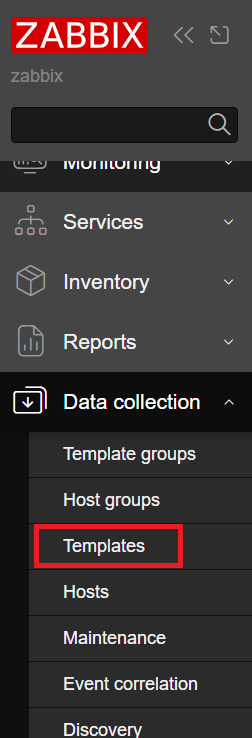
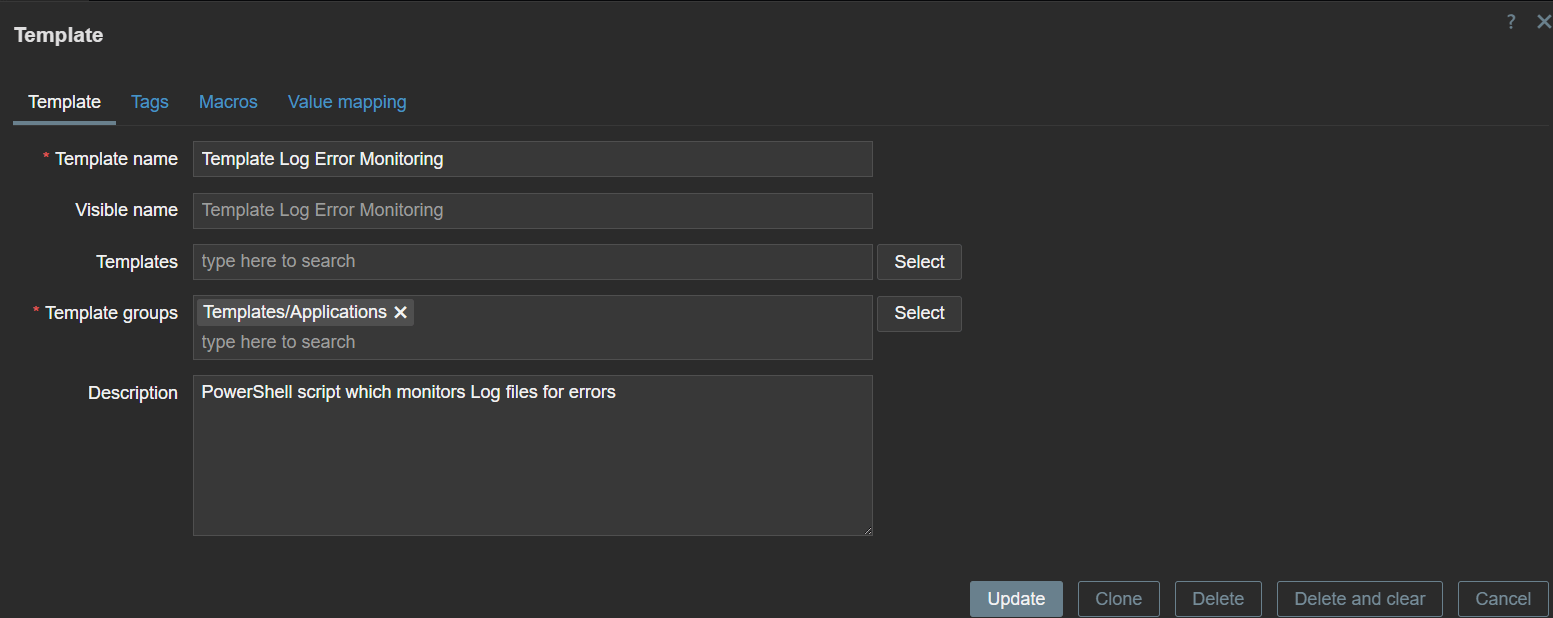
Expand Data collection and click Templates-Create Template
After template is created,select it and click Discovery.
In a Zabbix template, discovery (specifically referred to as Low-Level Discovery or LLD) is a powerful feature that allows Zabbix to automatically detect components on a host and then create corresponding monitoring items, triggers, and graphs for them.

Populate is as below
In Discovery rules,select rule and click on Item prototypes
In Zabbix, item prototypes are blueprints or templates for creating actual monitoring items automatically through Low-Level Discovery (LLD). Instead of defining each monitoring item manually for every discovered component (like a log file, a file system, or a network interface), you define an item prototype within an LLD rule.

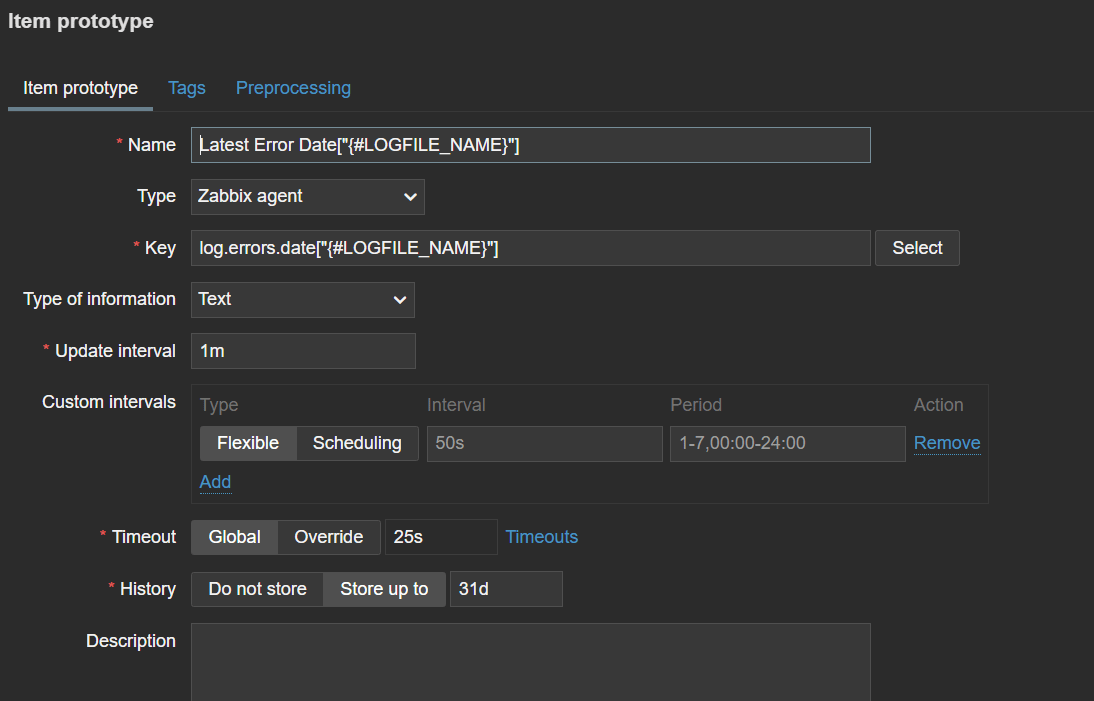
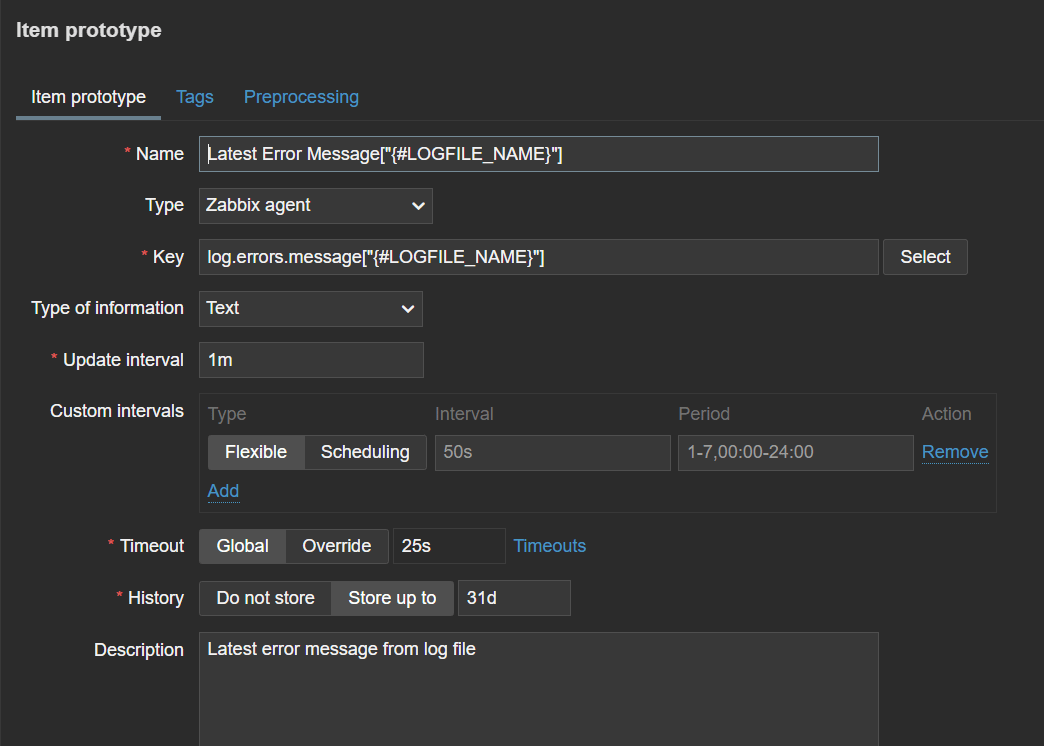
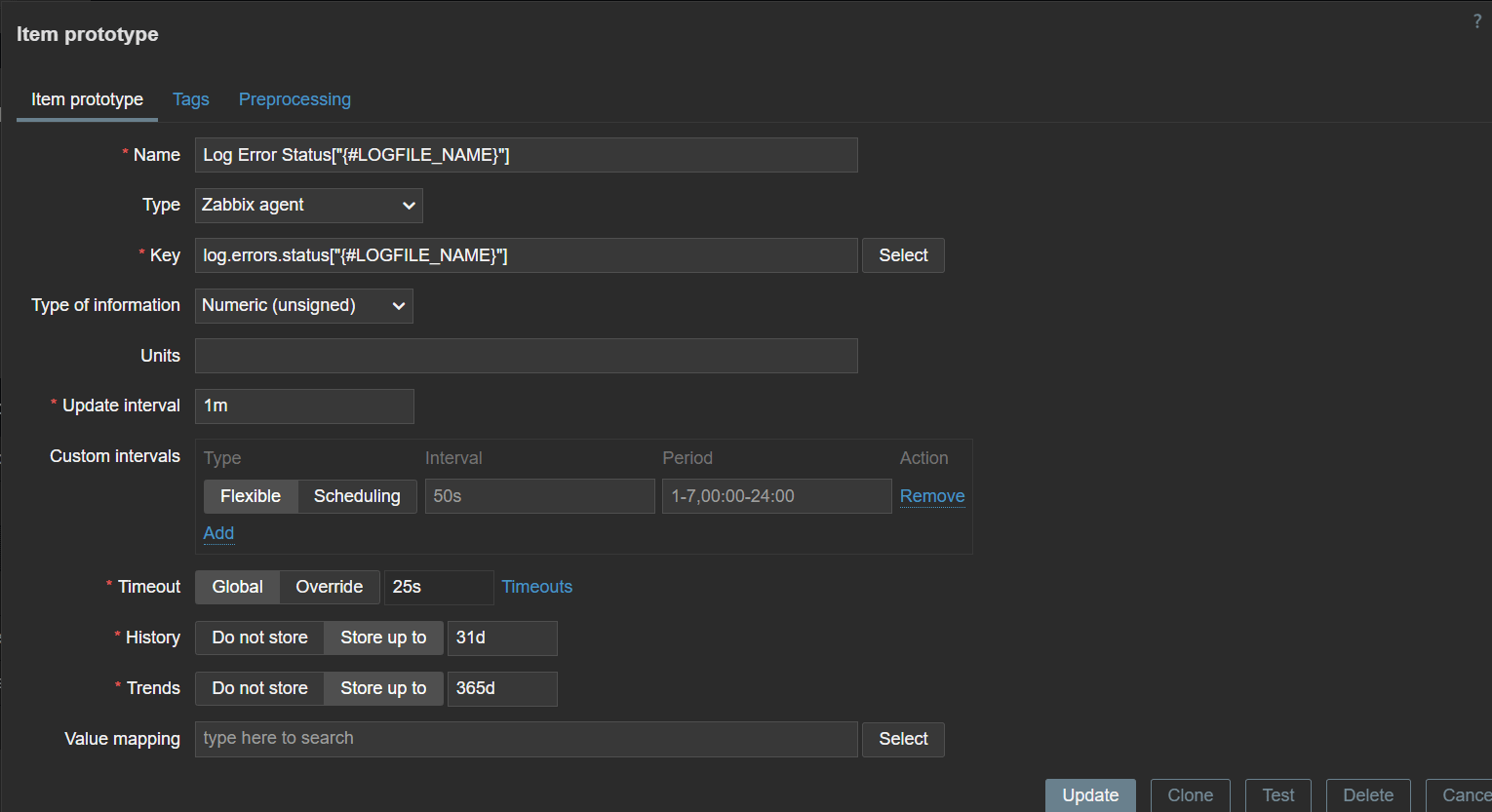
Create 3 prototypes as below, one for each Value in PowerShell script:error message,error date and error status, change Update interval if needed.
Now create a trigger prototype
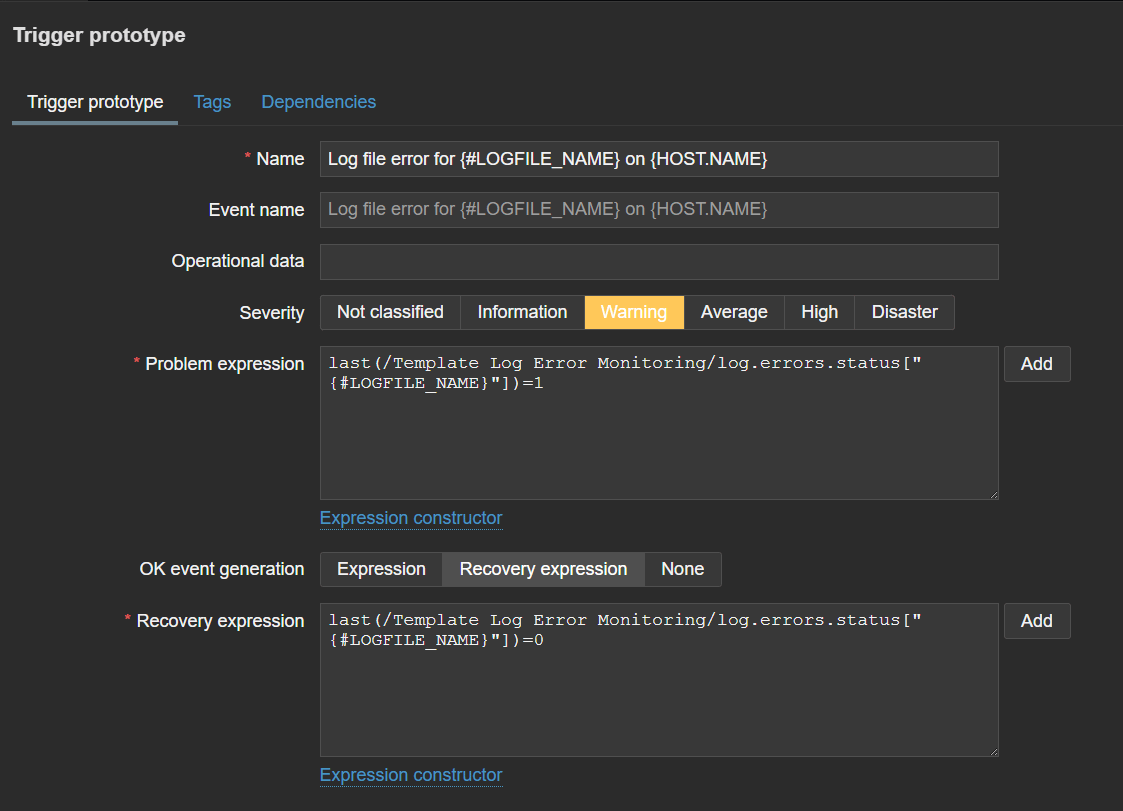
# expression to detect error
last(/Template Log Error Monitoring/log.errors.status["{#LOGFILE_NAME}"])=1
# expression to fix the error
last(/Template Log Error Monitoring/log.errors.status["{#LOGFILE_NAME}"])=0last(...): This is a Zabbix trigger function. It returns the last (most recent) value collected for the specified item./Template Log Error Monitoring/: This specifies the template that the item belongs to. In this case, it's a template likely named "Template Log Error Monitoring". This helps Zabbix locate the correct item even if multiple templates have similarly named items.log.errors.status["{#LOGFILE_NAME}"]: This refers to a specific item that Zabbix is monitoring.log.errors.statusis the item key, which corresponds to one of theUserParameterdefinitions you provided earlier:UserParameter=log.errors.status[*],powershell.exe -NoProfile -ExecutionPolicy Bypass -Command "((Get-Content 'D:\ScriptsLogs\ZabbixLogErrors.json' | ConvertFrom-Json).data | Where-Object {$_.'{#LOGFILE_NAME}' -eq \"$1\"}).status". This item retrieves the error status (0 or 1) for a specific log file.["{#LOGFILE_NAME}"]is where the Low-Level Discovery (LLD) macro comes into play. When Zabbix's LLD rule discovers a particular log file,it automatically creates actual items using this prototype. For instance,{#LOGFILE_NAME}would be replaced with1.txt, resulting in an actual item key likelog.errors.status["1.txt"].
=1: This is the condition for the trigger to fire. It means "if the last value collected by thelog.errors.statusitem for this specific log file is equal to 1.",if 0,clear the error
In summary, the entire expression last(/Template Log Error Monitoring/log.errors.status["{#LOGFILE_NAME}"])=1 means:
"If the most recent status value reported for any discovered log file (as determined by the log.errors.status item in the 'Template Log Error Monitoring' template) is 1 (indicating an error), then activate this trigger.",otherwise,close it.
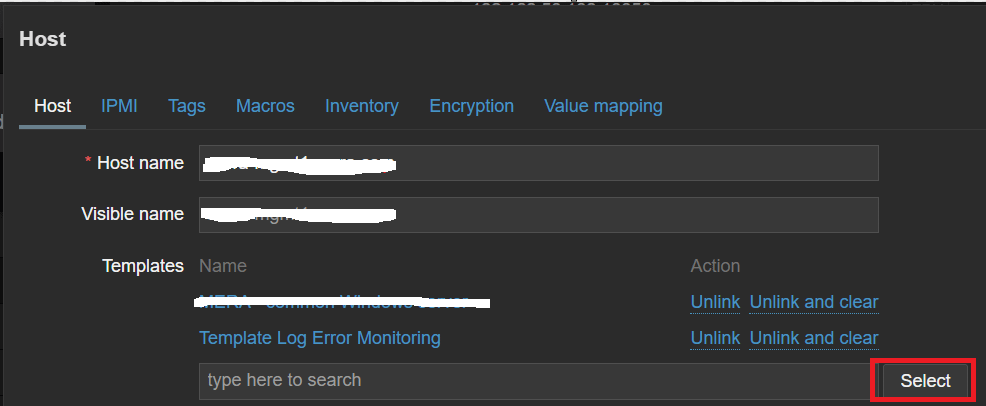
Now click on host where PowerShell script is running on, in templates section click Select and find the template we just created,now Template is linked to the host and Items and triggers will be created.
Creating Item for monitoring JSON file age
We need to monitor JSON file modification date so we can verify that script for monitoring script file is working and that Zabbix receives updated information.
In UserParameters section in Zabbix agent config file we already implemented JSON file monitoring
# UserParameter for JSON file last modification time
UserParameter=file.mtime[*],powershell.exe -NoProfile -ExecutionPolicy Bypass -Command "Get-Item '$1' | Select-Object -ExpandProperty LastWriteTimeUtc | ForEach-Object { [long][double]((Get-Date $_ -UFormat %s) + 0.5) }"
On the same host we attached template to click in Items-Create New item

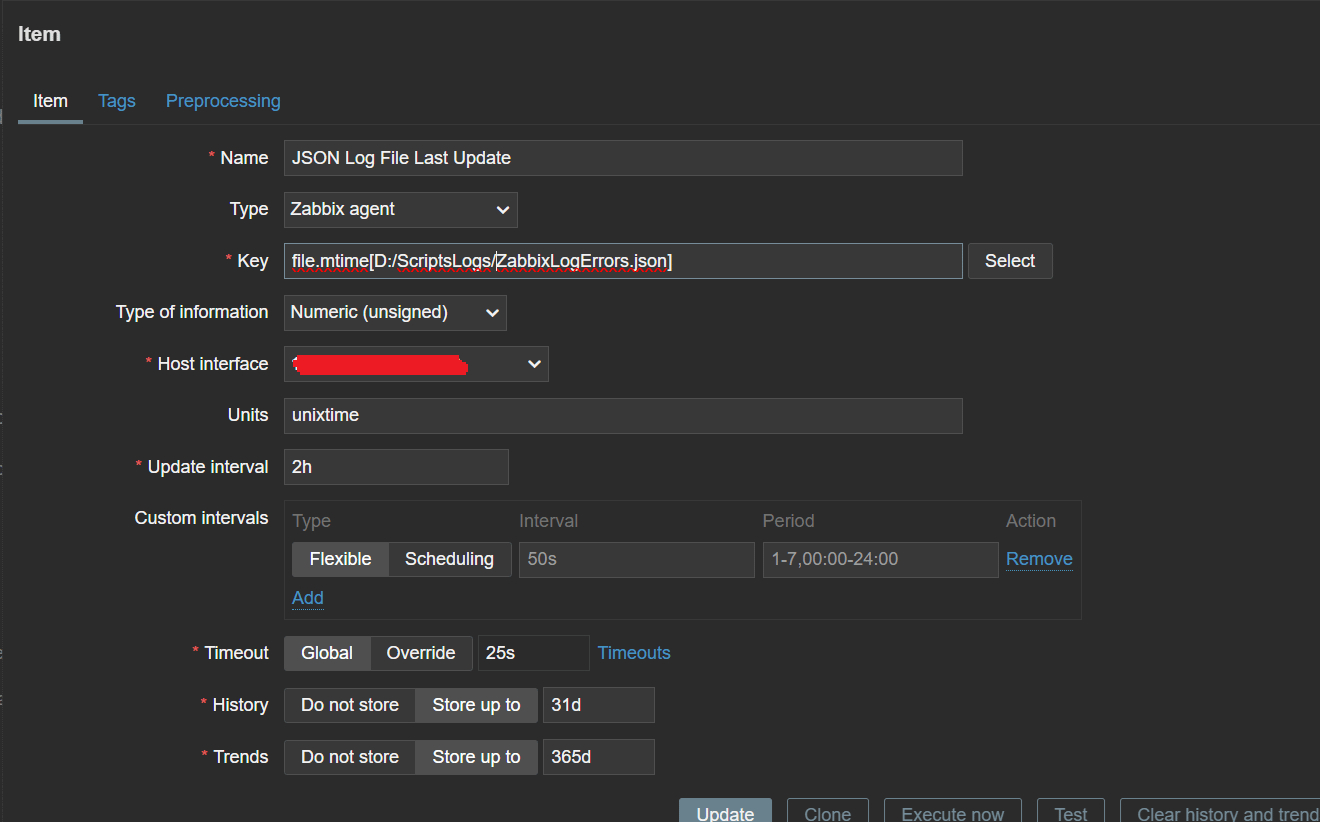
This item has path to JSON file and it tells powershell script which file to monitor $1 is parameter, it this case it’s Item key.
UserParameter=file.mtime[*],powershell.exe -NoProfile -ExecutionPolicy Bypass -Command "Get-Item '$1Creating trigger
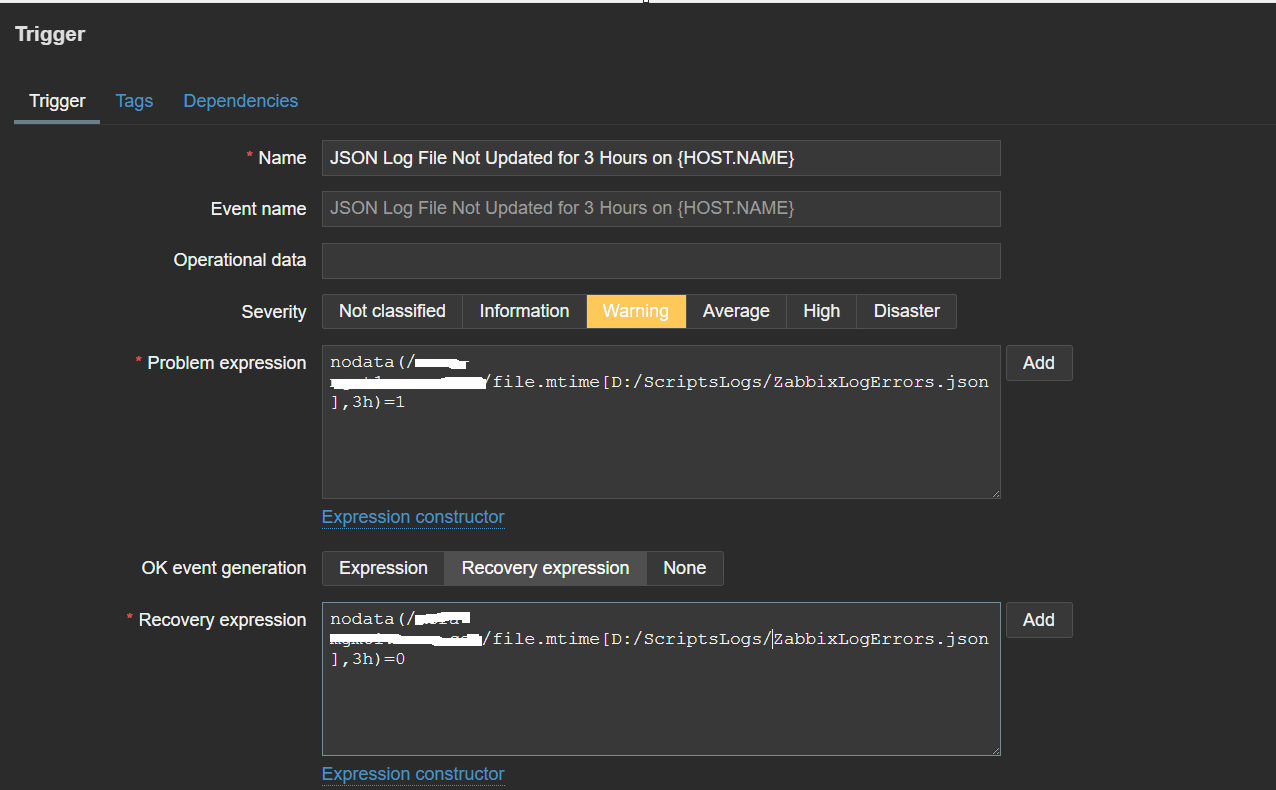
Now click Triggers-Create new trigger
# problem expression
nodata(/server.example.com/file.mtime[D:/ScriptsLogs/ZabbixLogErrors.json],3h)=1
# recovery expression
nodata(/server.example.com/file.mtime[D:/ScriptsLogs/ZabbixLogErrors.json],3h)=1
If there are no new data in 3 hours,create alert.